User Experience Details
Select the row of the end user whose experience you want to assess and then click Show; details for the end user's experience are displayed.
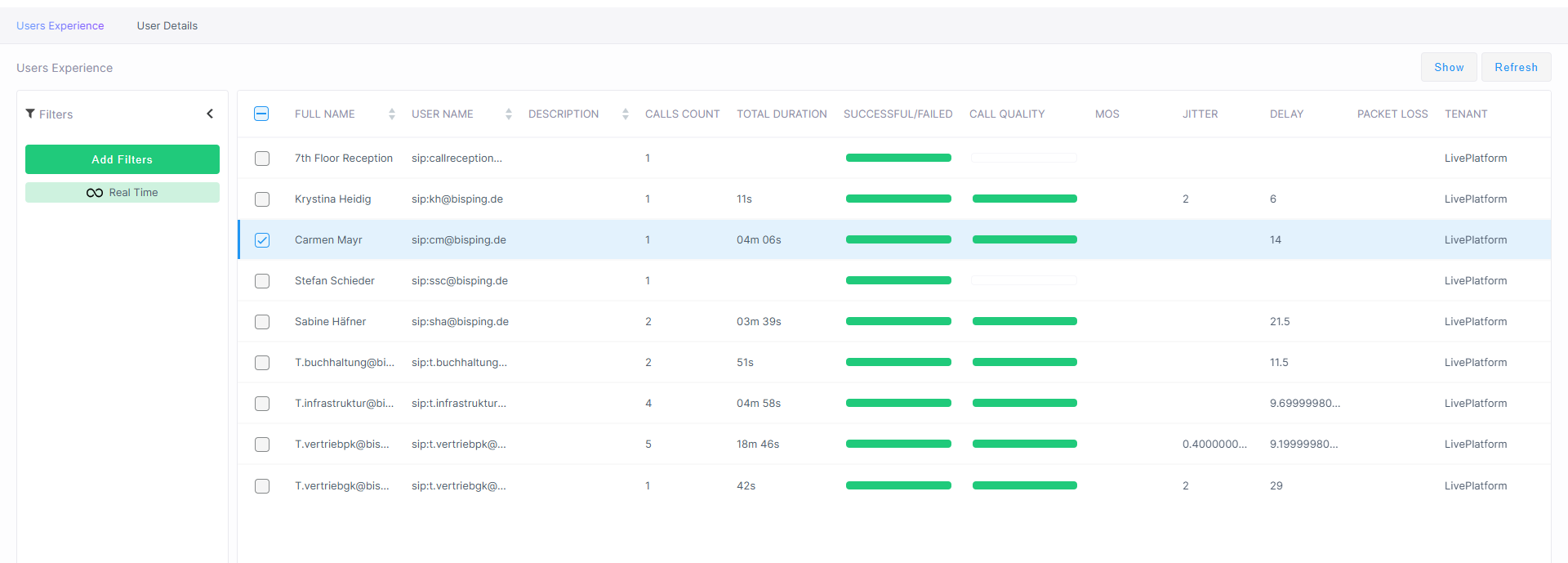
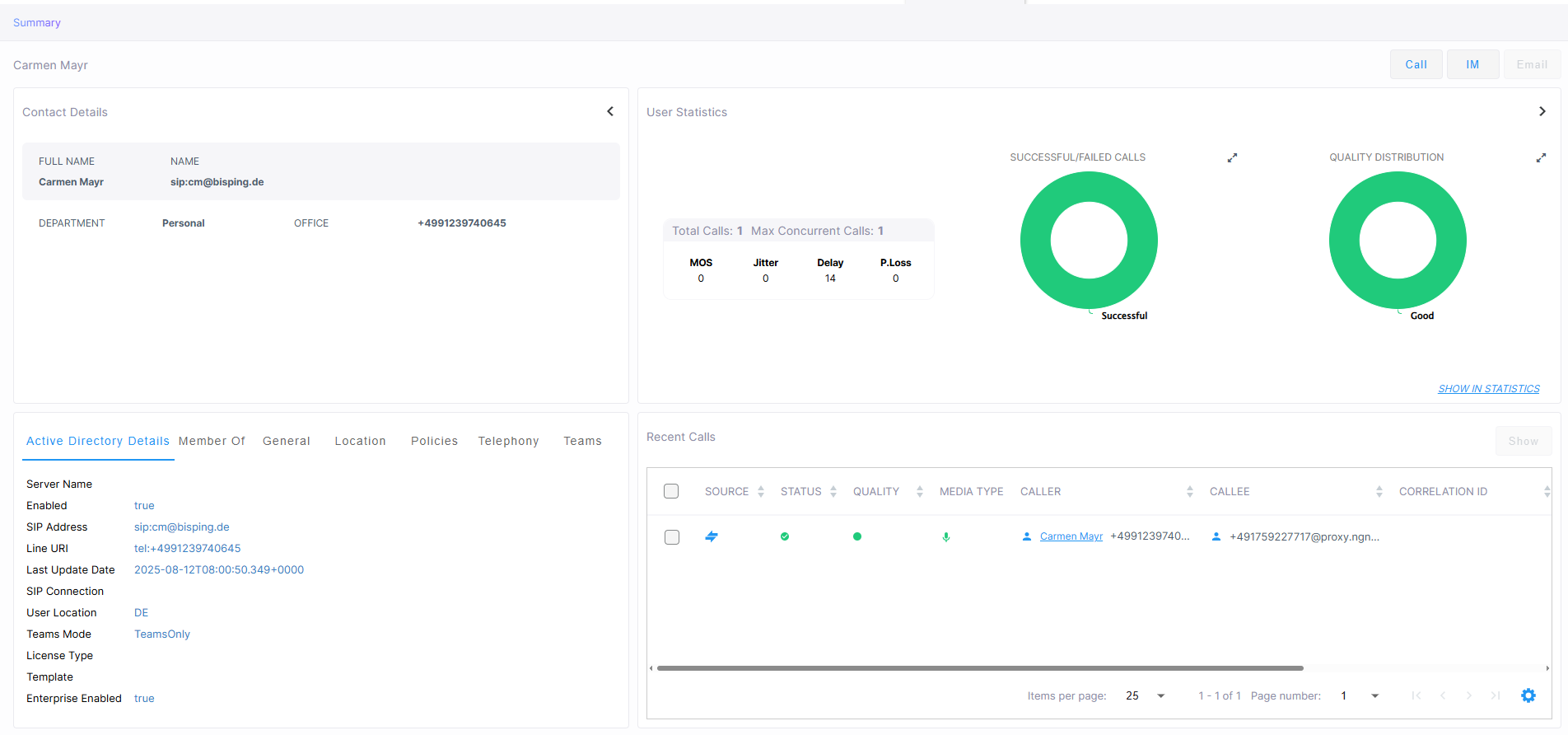
This screen is divided into the following panes:
|
■
|
Contact Details: Displays personal Contact Details |
|
■
|
User Statistics: Displays a statistics summary for all calls made by the user |
|
■
|
Microsoft Teams/Active Directory Attributes including: |
|
●
|
Active Directory Organization unit |
|
●
|
Assigned Plan and User Types |
|
●
|
Microsoft Policies applied to the user |
|
●
|
Telephony Policies applied to the user |
|
●
|
Teams Policies applied to the user |
|
■
|
A list of recent calls made by the user |
You can also do one of the following:
|
■
|
Click Call to place a call to the user |
|
■
|
Click IM to send an instant chat message to the user |
|
■
|
Click Email to send an email to the user. |
This page displays specific information related to this end user's experience and is automatically dynamically tabbed on the menu bar as a pin (labeled A1_User in the page shown above) that facilitates quick and easy future access and troubleshooting management. Operators can delete the pin from the menu bar at any time.